

With this weekend’s fall-back time change, your Apple Watch should’ve automatically updated to the correct time without intervention. But what if that’s not the case?According to Apple, a bug is causing some Apple Watches to display the wrong time — off by an hour — on the home screen. While this hiccup doesn’t appear terribly widespread, it could not doubt lead to confusion, especially if you use your Apple Watch as an alarm clock. Fortunately, there are two very easy ways to correct the issue if your Apple Watch is showing the wrong time. The first involves simply restarting your watch by holding down the side button until the slider appears, and then again until the Apple logo reappears. However, if that doesn’t work, try the old watch face swaperoo trick — listed out in five easy steps below — for a surefire fix. How to fix your Apple Watch if it’s showing the wrong timeOpen the Apple Watch app on your iPhone and tap on “Face Gallery” at the bottom centerSelect a new watch face to switch by tapping 'Get' (any one will do)Tap the watch face preview and then 'Add to Watch' to install the face Once the new watch face is installed, go back to the Apple Watch app on your iPhone, tap 'My Watch,' and select your original watch face from the carousel at the topScroll down to the bottom and tap 'Set as current watch face'Read on to see full illustrated instructions for each step. 1. Open the Apple Watch app on your iPhone and tap on 'Face Gallery' (Image: © Tom's Guide) If your Apple Watch is showing the incorrect time by default, the first thing you'll want to do is open the Apple Watch app on your iPhone and tap on the "Face Gallery" at the bottom center of the screen. 2. Select a new watch face to switch by tapping 'Get' (any one will do) (Image: © Tom's Guide) Next, choose any of the watch faces by tapping "Get." We're only switching to this watch face temporarily, so it really doesn't matter which one you choose. 3. Tap the watch face preview and then 'Add to Watch' to install the face (Image: © Tom's Guide) Once it's downloaded to your phone (this should take just a few seconds), tap on the preview of the new watch face, and then tap "Add to Watch" to temporarily install the face. 4. Tap 'My Watch,' and select your original watch face from the carousel at the top (Image: © Tom's Guide) With the new watch face installed, your Apple Watch should now be showing the correct time, which means it is time to revert back to your original watch face. To do this, tap on "My Watch" at the bottom left of the screen to return to the Apple Watch app's main screen. Next, tap on your preferred watch face from the "My Faces" carousel at the top. 5. Scroll down to the bottom and tap 'Set as current watch face' (Image: © Tom's Guide) Finally, scroll down to the bottom of the watch face customization page and tap "Set as current Watch Face." This will reinstall your original watch face. (Image credit: Dan Bracaglia/Tom's Guide)And just like that, your preferred Apple Watch face should be showing the correct daylight-savings-adjusted time. Looking for more Apple Watch tips and tricks? Here’s how to enable Apple’s new AI-powered Siri, how to add Apple’s dynamic step count to your home screen, and how to unlock Apple’s new Readiness score. More from Tom's GuideI walked 6,000 steps with the Fitbit Edge vs Apple Watch 12 — and I'm shocked by the resultsApple Watch Ultra 4 first impressions: 5 reasons to buy and 2 reasons to skip Apple’s new rugged modelApple just killed one of my favorite Apple Watch features with the launch of watchOS 27
How to fix your Apple Watch if it’s showing the wrong time
TO
Tom's GuideBy Dan Bracaglia 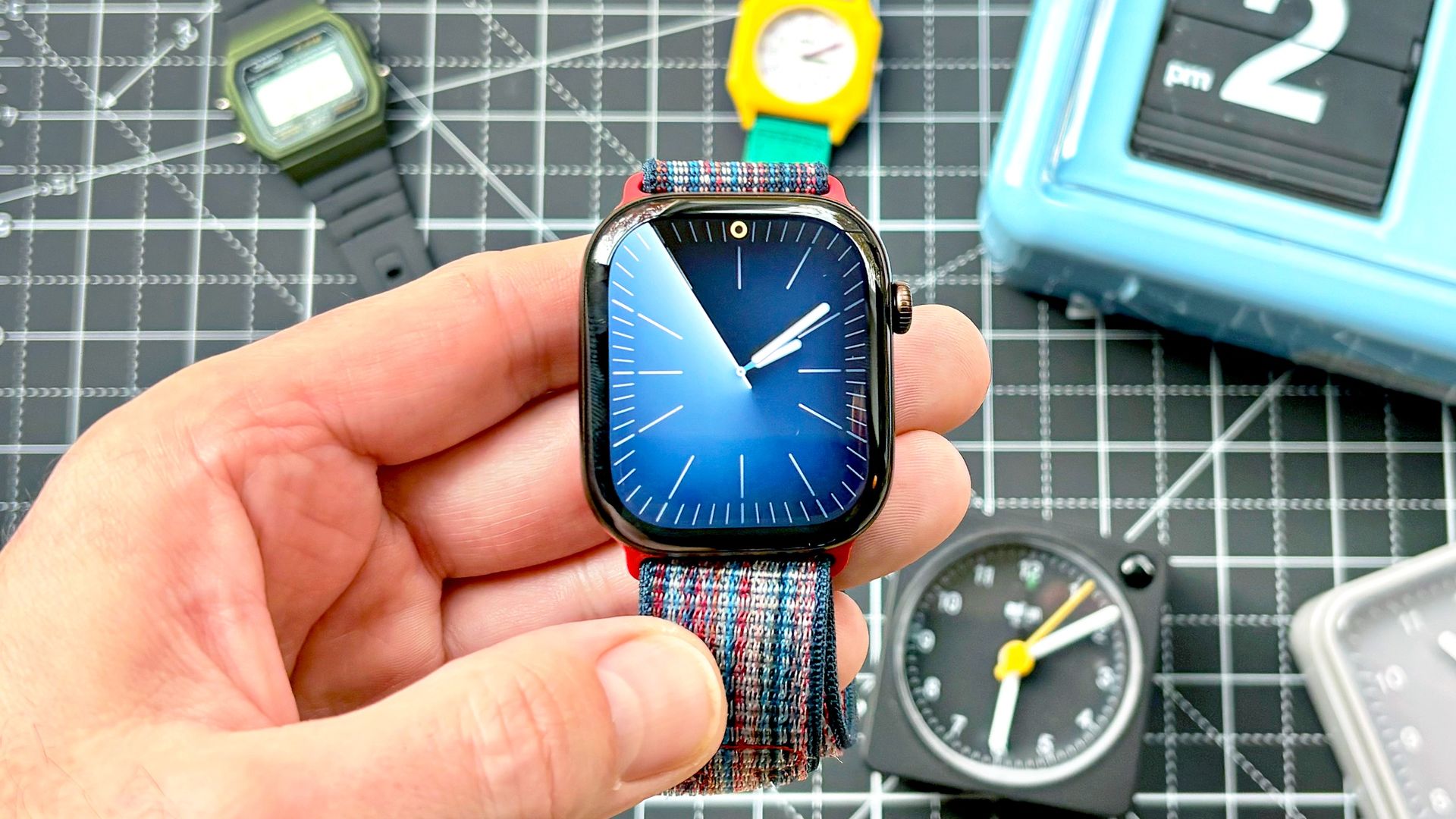
EXECUTIVE SUMMARY
Did your Apple Watch fail to 'fall back'? Here's how to fix the problem in five quick and easy steps.
Key Takeaways
- How to fix your Apple Watch if it’s showing the wrong time.
- Did your Apple Watch fail to 'fall back'?
- Here's how to fix the problem in five quick and easy steps.
Read Complete Original Article
Published originally on Tom's Guide